
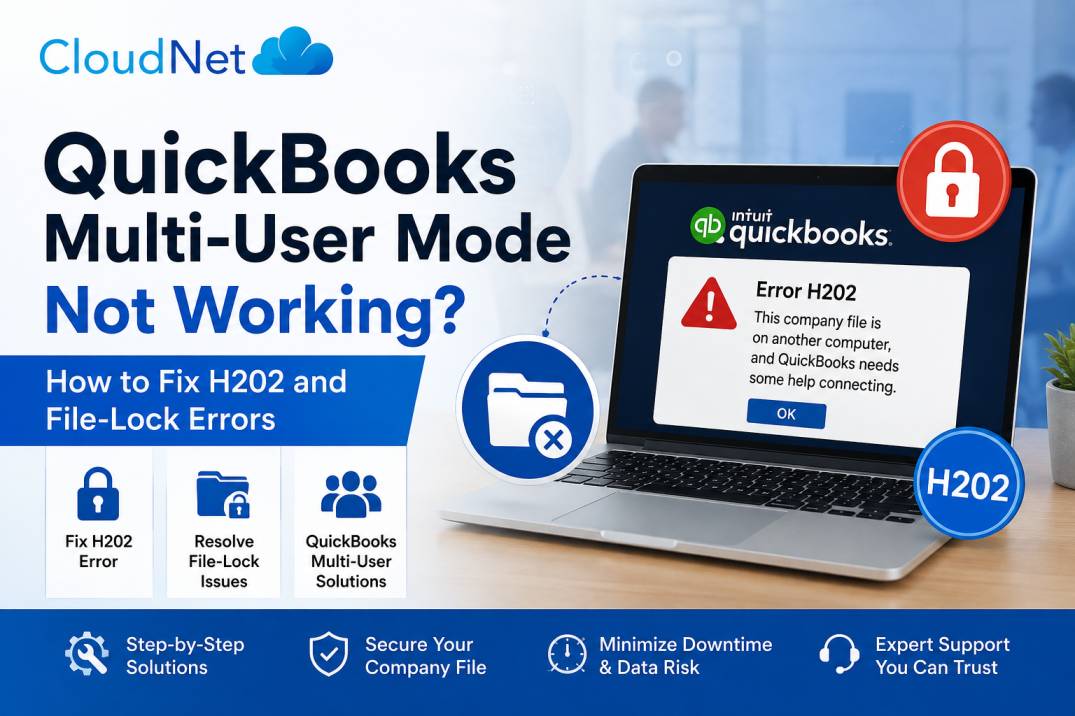
It usually happens at the worst possible moment. Your bookkeeper is trying to open the company file while you’re already in it. Two people need the books before a deadline. And QuickBooks throws up a message that stops everyone cold:
“Error H202: This company file is on another computer, and QuickBooks needs some help connecting.”
Or maybe it’s a different flavour of the same headache — “file in use,” “you must be in single-user mode,” or the dreaded H505. Whatever the exact wording, the result is the same: your team can’t work in QuickBooks at the same time, and nobody’s quite sure why.
The good news: these errors are common, they’re well understood, and most of the time you can fix them yourself without calling in an expensive technician. This guide walks through the fixes in plain English — start at the top, work down, and stop when it’s working.
We’ll also explain why these errors keep coming back for some businesses (it’s not bad luck), and the one change that makes them stop for good.
First, what do these errors actually mean?
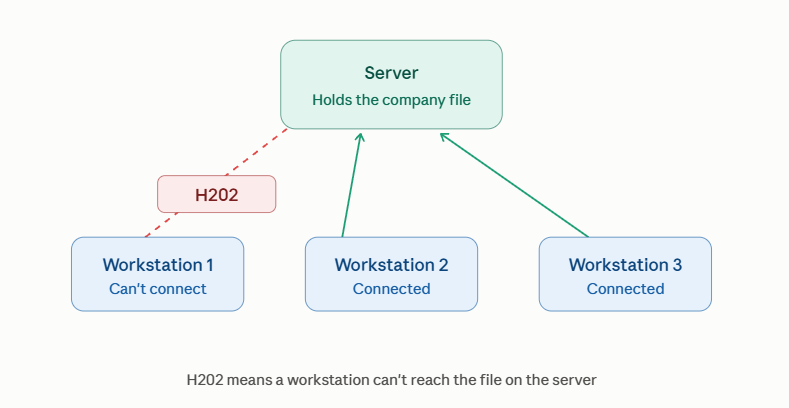
In simple terms: QuickBooks multi-user mode lets several people work in the same company file at once. For that to work, one computer acts as the “server” (it holds the file) and the others connect to it over your office network. Error H202, H505, and file-lock messages all mean the same basic thing — a workstation is trying to reach the company file, but something is blocking the connection to the server.
Think of it like a shared filing cabinet. One computer holds the cabinet (the server). Everyone else needs a clear path to walk over and open a drawer. When you get H202, it means a staff member’s computer can’t find its way to the cabinet — the path is blocked, the cabinet moved, or the door is locked.
Here’s what the common messages mean:
- Error H202 — a workstation can’t reach the server that holds the company file. The most common multi-user error.
- Error H505 — very similar to H202. The workstation can’t find the server at all, usually because hosting isn’t set up on the server.
- “File in use” / “must be in single-user mode” — someone else has the file open in a way that blocks multi-user access, or the hosting settings are wrong.
They all trace back to the same handful of causes, so the same fixes apply.
Why does this keep happening? The 5 usual causes
Most multi-user errors come down to one of five things: wrong hosting settings, a firewall blocking the connection, QuickBooks background services not running, the network not “seeing” the server, or a damaged network file. You don’t need to memorise these — the steps below check each one in order.
Quickly, so you understand what you’re fixing:
- Hosting is set up wrong. Only the server should be set to host the file. If a workstation is also trying to host, they fight each other.
- The firewall is blocking QuickBooks. Windows Firewall or antivirus can block the “doors” (ports) QuickBooks uses to talk between computers.
- QuickBooks services aren’t running. QuickBooks uses hidden background programs (with names like QuickBooksDBXX and QBCFMonitor) to manage the shared file. If they’ve stopped, multi-user breaks.
- The network can’t find the server. The workstation can’t locate the server by name — usually a network or DNS hiccup.
- A damaged network file. Small hidden files (ending in .ND and .TLG) manage multi-user access. If they get corrupted, the connection fails.
Now the fixes. Work through them in order and test after each one.
Fix 1: Check your hosting settings (fixes it most often)
This is the single most common cause, so start here. The rule is simple: hosting should be turned ON only on the server (the computer that holds the file), and turned OFF on every other computer. Two computers trying to host the same file is the number-one cause of H202.
On each workstation (the computers that are not the server):
- Open QuickBooks.
- Click the File menu at the top.
- Hover over Utilities.
- Look at the option in the list:
- If it says “Stop Hosting Multi-User Access,” that workstation is wrongly hosting. Click it to turn hosting off.
- If it says “Host Multi-User Access,” leave it alone — this workstation is set correctly. Don’t click it.
Do this on every workstation. You want hosting off everywhere except the server.
On the server (the computer that holds the company file):
- File → Utilities.
- It should say “Stop Hosting Multi-User Access” — meaning hosting is correctly turned on. If it says “Host Multi-User Access,” click it to turn hosting on.
Now test: on a workstation, go to File → Switch to Multi-User Mode. If it works, you’re done. If not, keep going.
Fix 2: Run the QuickBooks Tool Hub (the easy button)
Intuit makes a free tool that automatically finds and fixes most multi-user problems. If the hosting check didn’t work, this is your next stop — it does the technical work for you.
- Close QuickBooks on all computers.
- On the server, download the free QuickBooks Tool Hub from Intuit’s official website (search “QuickBooks Tool Hub download”).
- Open the downloaded file and follow the prompts to install it.
- Open QuickBooks Tool Hub from your desktop.
Then run two tools inside it:
A) Database Server Manager (fixes the server connection):
- In Tool Hub, click Network Issues.
- Click QuickBooks Database Server Manager.
- Click Start Scan (browse to your company file folder if it asks).
- Let it finish. It automatically fixes firewall permissions for you.
B) QuickBooks File Doctor (fixes file and network problems):
- In Tool Hub, click Company File Issues.
- Click Run QuickBooks File Doctor.
- Choose your company file, select Check your file and network, and click Continue.
- Enter your admin password if asked, and let it run.
When both finish, test multi-user mode again from a workstation. The Tool Hub solves the majority of cases on its own — most people can stop here.
Fix 3: Make sure QuickBooks services are running
QuickBooks relies on a couple of hidden background programs to manage the shared file. If they’ve stopped, multi-user won’t work. This checks they’re switched on.
On the server:
- Press the Windows key + R together (this opens the “Run” box).
- Type services.msc and press Enter.
- A list of services opens. Scroll to find these two:
- QuickBooksDBXX (the XX is a number, like QuickBooksDB33 — it matches your QuickBooks year).
- QBCFMonitorService.
- For each one:
- Check the “Status” column says Running.
- If it’s blank or stopped, right-click it → Start.
- Right-click again → Properties → set “Startup type” to Automatic (so it starts on its own next time).
Test multi-user mode again.
This step is a little more technical. If the list looks intimidating, that’s a normal reaction — and it’s a sign of the bigger issue we cover at the end.
Fix 4: Let QuickBooks through your firewall
Your firewall protects your computer by blocking connections — but sometimes it blocks the wrong ones, including QuickBooks. This opens the specific “doors” QuickBooks needs.
The easy way: the Database Server Manager in Fix 2 usually sets firewall permissions automatically. If you ran it, this may already be handled.
If you’re still stuck, QuickBooks needs certain firewall “ports” open. For QuickBooks 2019 and newer, ports are handled automatically once you’ve run the Database Server Manager — which is another reason Fix 2 matters.
For older versions, or if you want to set them manually, Intuit’s website lists the exact ports for your year under “Configure firewall for QuickBooks Desktop.” This is genuinely fiddly, and it’s the point where many business owners decide it’s time to hand it to someone else.
Fix 5: Check the workstation can “see” the server
Sometimes the workstation simply can’t find the server on the network. A quick test tells you if that’s the problem.
On a workstation showing the error:
- First, find the server’s name. On the server, open QuickBooks and press the F2 key. A window opens — write down the server/computer name shown.
- On the workstation, press Windows key + R, type CMD, press Enter. A black window opens.
- Type: ping then a space then your server’s name (for example:
ping SERVER-PC), and press Enter. - Watch the result:
- Replies with no loss = the workstation can see the server. The problem is elsewhere (go back to Fix 2).
- “Request timed out” or heavy loss = a network problem. Your server and workstation aren’t talking. This is a networking issue, often needing IT help.
Fix 6: Repair the damaged network file
Two small hidden files manage multi-user access. If one is corrupted, deleting it forces QuickBooks to rebuild a fresh, working copy. Don’t worry — this does not touch your accounting data.
On the server:
- Open the folder where your company file lives.
- Look for files with the same name as your company file but ending in .ND and .TLG (for example:
MyCompany.qbw.ND). - Delete only these .ND and .TLG files. (Your actual data is in the
.qbwfile — leave that alone.) - Reopen QuickBooks. It automatically creates fresh .ND and .TLG files.
- Run the Database Server Manager (Fix 2) once more to rebuild the connection.
Test multi-user mode again.
Still not working? Here’s the honest truth about why
If you’ve worked through all six fixes and multi-user still breaks — or worse, if you fix it today and it comes back next week — you’ve hit the real issue, and it’s important to understand it:
These errors are a symptom of running QuickBooks on an office network that wasn’t built for it.
Here’s what’s really going on. When your company file lives on one office computer and everyone else connects over your local network, you’re depending on a long chain of things all working perfectly: that computer staying on, Windows updates not breaking permissions, the firewall behaving, the network staying stable, the QuickBooks services never stopping, and nobody accidentally changing a hosting setting. Every one of those is a point that can fail — and H202 is what you see when any link in the chain breaks.
That’s why some businesses fix H202 once and never see it again, while others fight it every few weeks. The ones fighting it repeatedly usually have an ageing “server” computer, a patchy network, or staff trying to connect from home over a clunky VPN. You’re not doing anything wrong — the setup itself is fragile.
The permanent fix: stop hosting QuickBooks on your own office server
The reason these errors keep coming back is that the company file is sitting on a computer and network you have to maintain yourself. Move QuickBooks to a professionally managed cloud server, and the whole category of problem disappears — because the hosting, firewall, services, and network are all configured correctly and kept that way by people whose job it is.
This is worth understanding clearly, because it’s the difference between fixing H202 this time and never seeing it again.
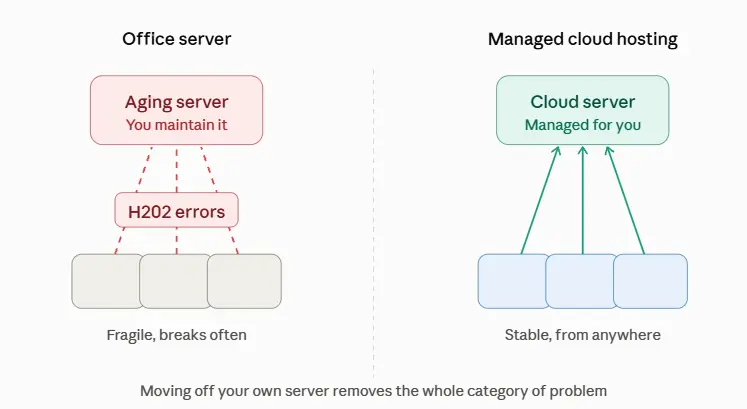
With cloud hosting, your QuickBooks Desktop runs on a server built and maintained specifically to run QuickBooks. Your team logs in and works in the same file at the same time — from the office, from home, from anywhere — and:
- Hosting is configured correctly, permanently. No workstation accidentally hosting, no settings drifting.
- The firewall and ports are set up right and stay that way.
- The QuickBooks services are monitored so they don’t silently stop.
- The network is stable and fast, tuned for QuickBooks’ multi-user behaviour.
- No more emailing the company file around — everyone’s in one real-time version.
- No more “file in use” standoffs between staff.
It’s the same QuickBooks Desktop you already use — same screens, same features — just running somewhere that was built for multi-user access instead of an office computer that wasn’t.
Put simply: H202 is almost always a “where QuickBooks is running” problem, not a “QuickBooks” problem. Change where it runs, and the errors stop.
Frequently asked questions
What is the fastest way to fix Error H202? Start with the hosting check (Fix 1) — make sure only your server is hosting and every workstation has hosting turned off. That resolves the majority of cases in under two minutes. If it doesn’t, run the QuickBooks Tool Hub’s Database Server Manager (Fix 2), which fixes most of the rest automatically.
What’s the difference between H202 and H505? They’re closely related. Both mean a workstation can’t reach the server holding the company file. H505 usually means the server isn’t set up to host multi-user access at all, while H202 means it’s hosting but the connection is being blocked. The same fixes apply to both.
Will these fixes delete my accounting data? No. None of these steps touch your actual company data. Even deleting the .ND and .TLG files (Fix 6) is safe — those are just connection helper files that QuickBooks rebuilds automatically. Your data lives in the .qbw file, which you never delete.
Why does H202 keep coming back after I fix it? Recurring H202 errors almost always mean your underlying setup is unstable — an ageing server computer, a patchy office network, or staff connecting remotely over a weak VPN. The individual fix works, but the fragile setup lets the problem return. Hosting QuickBooks on a managed cloud server removes the fragile setup, which is why the errors stop coming back.
Can multiple users work in QuickBooks from different locations? Not reliably on a traditional office setup — that’s often where these errors come from, especially with remote staff on a VPN. With cloud hosting, multiple users can work in the same file from any location as easily as if they were in the same room, because everyone connects to the same properly-configured server.
Do I need to be technical to fix this? The first two fixes (hosting settings and the Tool Hub) are designed for regular users. The later steps (services, firewall ports, network testing) get more technical. If you find yourself out of your depth around Fix 3 or 4, that’s a normal place to decide it’s worth getting help — or worth removing the problem entirely by moving to hosting.
The bottom line
QuickBooks multi-user errors like H202, H505, and “file in use” all come from the same place: a workstation can’t cleanly reach the company file on your server. Most of the time you can fix it yourself — check your hosting settings first, then let the free QuickBooks Tool Hub do the heavy lifting, and work through the remaining steps only if you need to.
But if you’re fixing the same error over and over, the honest answer is that the problem isn’t really QuickBooks — it’s that your books are running on an office computer and network that were never built for multi-user access. That’s a fragile setup, and no single fix makes fragility go away.
Cloudnet hosts QuickBooks Desktop for Canadian businesses on servers built specifically for multi-user access, in Canadian data centres, with the hosting, firewall, services, and network all configured correctly and kept that way. Your team works in the same file from anywhere — no H202, no file-lock standoffs, no emailing copies around. If you’re tired of fighting these errors, talk to us for a free consultation and we’ll tell you honestly whether hosting is the right fix for your setup.
About Cloudnet
Cloudnet is a Canadian cloud hosting and managed IT company serving businesses across Canada and the United States. We host QuickBooks Desktop, Sage, and other business applications in Canadian data centres, with a 99.9% uptime guarantee backed by SLA, free migration, and a dedicated Canadian support team — so your team can work together in the same file, from anywhere, without the multi-user headaches.
📞 Toll Free: (888) 306-6628 🌐 cloudnet.ca 📧 sales@cloudnet.ca